Logic and Elves!! (Tried and Tested #11) Minecraft Mini Game

Ho Ho Ho – Merry Christmas Everybody!

It’s nearly Christmas and Melvis and Hopper have got themselves temporary jobs in the present sorting office in Minecraft to help the elves get ready for the big day… OR… they are trying out another festive mini game in Realms – you decide 🙂

If you like the look of Logic & Elves, you can find it in the minigame section on Minecraft Realms and try it for yourself – see if you can beat our (not so) super time of 21 minutes!

Don’t forget, you can subscribe to our channel for regular family-friendly Minecraft and gaming videos, hit the thumbs-up if you like this video…

Abominable Snowball Fights!! (Tried and Tested #10) Minecraft Mini Game

It’s cold outside, it’s nearly Christmas so, let’s see what Minecraft Minigames there are for the festive season…

Look, look, look – we found Snowbound!

Today’s video is the latest in our Tried and Tested series and we’re playing the Minecraft Minigame ‘Snowbound’ in Minecraft Realms – how can something with this much snow in it not be festive?

See what happens when battle commences between two very cute snowmen (aka Melvis and Hopper) and how much fun this minigame is!

If you want to try this for yourself you can get it automatically in the Minecraft Realms mini-game section, which is where we played it from.

Enjoy!

Minecraft – Console Commands and Using Them

Everyone needs a little help now and then when it comes to Minecraft…

Minecraft_c6db89_3037743

In our Realms World, Hopper and I have been playing around with commands to see what they can help you out with. Below is a list of many of the basic commands that you can use in Minecraft (if you have permissions set correctly) and some help on how to use them. If you want a player to have access to these features – make sure that they are trusted, as they can do lots of things as an ‘operator’ – and then go to their profile in your Minecraft Realms ‘Players’ tab – click the shield to make it gold and they will be promoted to an operator. If you want to remove this, then you can do this in the same way.

Now for some of the commands you can use in this mode!

Help
/help

Typing this in will bring up a list of the general commands available to you at that point in the game. If you type /help [CommandName] it will provide you with more information on the command that you have asked about.

e.g. typing /help gamemode will tell you how to use/type that command

Give
/give [Amount] [DataValue]
Use this command to give another player an item from your inventory, or can also be used if you are in Realms survival to get something very specific.

e.g. typing /give Hopperboye diamond 64 will give your Minecraft buddy 64 diamonds!!

If you want to give a specific item, like a diamond sword, which has two words in the name you should use an under-score to separate them, otherwise they won’t be recognised.

e.g. /give Hopperboye diamond_sword 1

Teleport
/tp [TargetPlayer]
No more running and jumping from place to place – instantly transport yourself or another player to a specific location in the world. Using another player’s name in place of the coordinates will transport the target directly to said player’s location.

e.g. /tp Melvis_WG would bring Hopper from wherever he is to where I am

You can use this same command with coordinates to travel great distances (helpful if you know where things are in your world). So, you can use these to move around your world, or different bases quickly.

e.g. /tp Melvis_WG would bring Hopper from wherever he is to where I am

For our guide on coordinates in Minecraft, click here.

Kill
/kill
Kills your character, adding another player’s name e.g. /kill Hopperboye will apply the command to them. 😦 Let’s not use that!

Weather
/weather
Allows you to choose the weather or your world.

Options include:

  •  
    type Description
    clear Sky will clear and turn blue. It will stop raining/snowing.
    rain Sky will darken. It will start to rain (in a snow biome, the rain will appear as snow).
    thunder Sky will darken. It will start to rain and then thunder/lightning.
  • duration is optional. It is the length of time (in seconds) that the weather cycle will last, so leave a space and type in how many seconds it should last.

e.g. /weather clear will make it clear permanently

/weather clear 999 will make it clear for 999 seconds


Creative mode
/gamemode creative
Changes the gamemode to Creative mode, which allows player flight, unlimited resources and stops mobs attacking you. (You can also use /gamemode 1 for Creative)

Survival mode
/gamemode survival
Changes the gamemode to Survival mode, which means mobs will attack you and you’ll have to gather all resources the old-fashioned way. (You can also use /gamemode 0 for Creative)

Set time
/time set 1000
Sets the time to day. Replace “1000” with “0” for dawn, “6000” for midday, “12000” for dusk and “18000” for night.

Change difficulty to Peaceful
/difficulty peaceful
Changes difficulty to Peaceful mode. Replace “peaceful” with “easy”, “ normal”, or “hard” for more of a challenge.

How to find your world’s seed code
/seed
This will produce a code for your world, note it down so that you can load up an identical one in the future.

Keep inventory when you die
/gamerule keepInventory true
Ensures you don’t lose your items upon dying. To revert this, type “false” in place of “true”

Stop time
/gamerule doDaylightCycle false
This will stop the game’s day/light cycle in it’s place, allowing you to live under permanent sunshine or moonlight. To resume the day/light cycle type in “/gamerule doDaylightCycle true”.

Summon
/summon
Instantly drops a desired creature or object into your world, especially handy for when you’re short a couple of tame wolves.

Cannon
/cannon
Shoots a TNT block at where the player’s pointing.

Atlantis mode
/atlantis
Dramatically raises the world’s water level, submerging all but the highest mountains.

Jump
/jump
Teleports the player to where they’re facing

Mob damage
/mobdamage
Mobs can’t deal any damage to you.

Ride
/ride
Turns the creature you’re facing into a mount.

Instant mine
/instantmine
One-click mining with any tool.

Freeze
/freeze
Stops mobs in their tracks.

Fall damage
/falldamage
Turns fall damage on and off.

Fire damage
/firedamage
Turns fire damage on and off.

Water damage
/waterdamage
Turns water damage on and off.

Smelt item
/superheat
Turns all items into their smelted form.

Instant plant
/instantplant
No more waiting around for a planted seed to grow.

Store items
/dropstore
Stores all inventory items into a chest, which spawns nearby.

Item damage
/itemdamage
Weapons no longer receive damage or degrade.

Duplicate
/duplicate
Copies and drops the item stack that you have equipped.

That’s all the basic commands covered, but if there’s something more specific you’re looking to do with console commands check out a more thorough guide here on Minecraft Gamepedia!

Minecraft Coordinates and How to Follow Them…

The coordinate system used in Minecraft is a bit confusing, as it doesn’t use the same approach as normal coordinates. Usually with coordinates X and Y axes – like on a graph or chart – are used when talking about length and width – in these systems, Z is used for height. However, in Minecraft, the X and Z axes represent length and width instead, with Y representing height. Helpful, eh…

Anyway, in Minecraft the centre of your Minecraft world is at the point 0, 0.

When X or Z increase or decease, it means that you are moving farther away from 0, 0, or the middle of your Minecraft world. Traveling to the south-east will increase your X and Z coordinates, and traveling north-west will decrease your X and Z coordinates. On the Y axis (height), 0 is the very bottom of the map, and 256 is the top of the map (or 128 in the Nether). Sea level is at 64 on the Y axis.

If, for example, your coordinates read X: 200, Y: 75, Z: -100, you would be 200 blocks east and 100 blocks north of your 0, 0 block, and at an altitude of 75 blocks.

Draft Battles!! (iPad Gaming #6) Try new cards for free in ‘Clash Royale’

Don’t have the best cards? Who cares – because in ‘Draft Battles’ you get to pick your deck each match from a whole host of cards, including legendary and epic ones from higher arenas than you’ve reached yet!

In today’s video we’re back in Clash Royale to share the fun that is ‘draft battles’. It doesn’t matter what level you are or what cards you’ve already got – here you can get anything in the draw at the start of each match.

Just try to keep your elixir costs reasonable – or else you won’t get to play the awesome cards – and make sure you have a good mixture of skills to take out air and ground troops and you should be good to go…

See how things go when Hopper and Melvis take each other on in head-to-head draft battles – they’re supposed to be ‘friendly’ ones within the clan…not sure that will be the case though!

Don’t forget, you can subscribe to our channel for regular family-friendly Minecraft and gaming videos, hit the thumbs-up if you like this video and if you play Clash Royale and would like to join the We-Game clan, get in touch with us via the game or in the comments here and you could feature in a future video!


Basic Training!! (iPad Gaming #5) Learn to Play ‘Clash Royale’

Want to learn the basics on Clash Royale…?

Today’s video will help you get started with how lots of the early characters work and where to use them (and when not to!)

Melvis and Hopper take each other on in ‘friendly’ battles to show you the best – and worst – features of the game characters you’ll meet in the first few arenas of play. Take a watch and prepare yourself with tips and tricks on how to best deploy your troops and help you to battle success!!

It’s Adventure Time! (We-Game Realms #10) Minecraft

It’s Adventure Time in Minecraft, with Jake the Dog and Finn the Human! 🙂

Today Melvis and Hopper are back in the We-Game creative realms world and are having a quick building challenge making some Jake and Finn block heads to keep the Minions company…

All the designs used in our Adventure Time build have been posted to the blog, so if you want to try yourself, there are some easy to use block designs on there – let us know how you get on if you try the build yourself!

Build Your Own – Adventure Time

Don’t forget, you can subscribe to our YouTube channel for regular family-friendly Minecraft and gaming videos, hit the thumbs-up if you like this video 😀


Build your own… Adventure Time!

We’ve not posted the video for this yet, but thought we’d share the designs for the character heads for our Adventure Time themed build challenge, in case you want to give building your own a try!

Finn Head Design

Finn – Head Design

Jake Head Design

Yay! It’s Jake


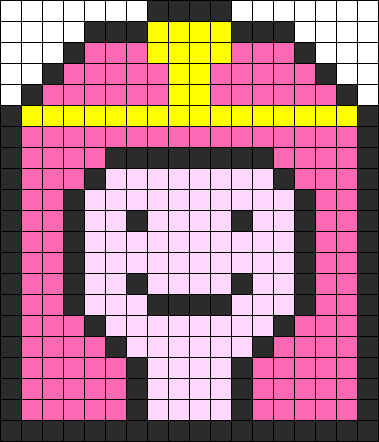
Bubblegum Princess Block

Don’t forget Princess Bubblegum 🙂


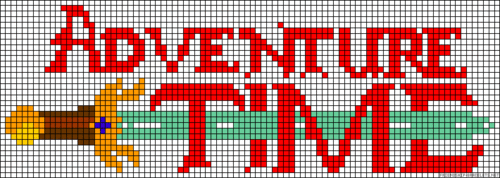
Adventure Time- Logo Pattern

Adventure Time – Logo Design (This would be pretty big to copy across, but would look EPIC!)


Build your own Minion! Minecraft Designs

Hi guys! As promised in our last video, here are the designs we based our Minecraft Minion Zone on, if you want to give it a try building your own Minecraft Minion.

We picked these ideas / designs up from Pinterest – you can search for Minecraft designs, but can also use ones for Hama beads or even cross-stitch patterns, as they all use a grid to make the picture, which makes it really easy  for counting the blocks and building in Minecraft.

The designs we used in the video are:

IMG_1340.PNGIMG_1345.PNG

You can see that some of the images have website names on where you can get other templates / designs like these if you want to search for them.

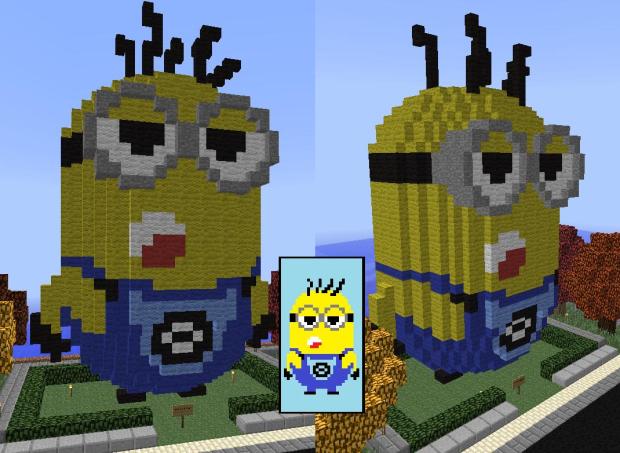
In the video, you will see that we’ve kept our designs pretty simple and based of these pictures, but if you wanted to you could make the Minion faces into 3D block heads, like you get in Minecraft, just by continuing the build out in a cube shape. Here are a couple of AMAZING images of Minecraft Minions we found when we were searching for designs! Definitely something for us to try in the future, but I bet these took longer than 20 minutes to build! 😀

MinecraftSchematicsCom - Minion.png

See more at MinecraftSchematics.com

PlanetMinecraft.jpg

Minions by PlanetMinecraft

Good luck with your own build project and come back and share your images/links with us if you like!